Physical Address
304 North Cardinal St.
Dorchester Center, MA 02124

7 min read
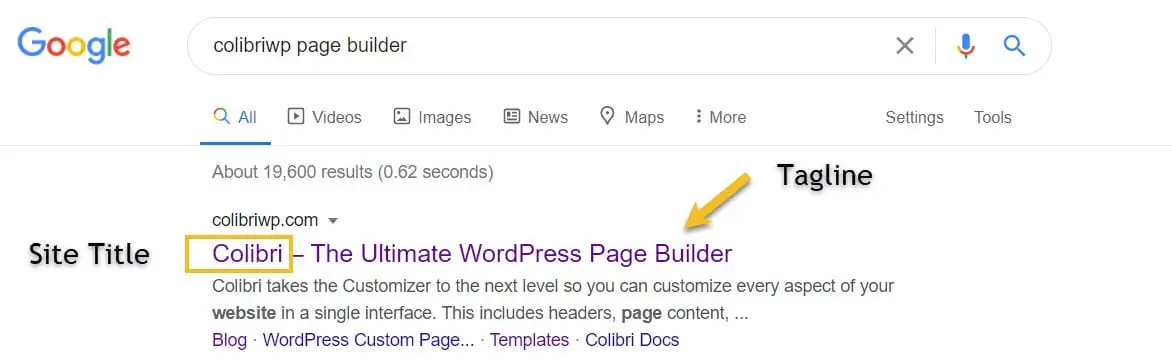
The title and tagline on a WordPress site are probably some of the first things potential visitors are going to see after reaching your website. These not only serve as your website’s identity but also build its SEO campaign. Even if you are not yet ready to start a redesign process, it will be very useful for you to consider changing your site title and tagline to make them more descriptive. Here we have outlined a step-by-step method on how to change the website name and description on a WordPress blog.
Table of Contents
Your site title and tagline are important for several reasons:
First Impressions: They are the primary point of contact of the site and play a crucial role in creating an impression of the site.
Brand Identity: They act as one of the most important ways in which your brand conveys its unique values and mission.
SEO: Search engines utilize these tags to interpret the content and purpose of your site and may impact your search ranking.
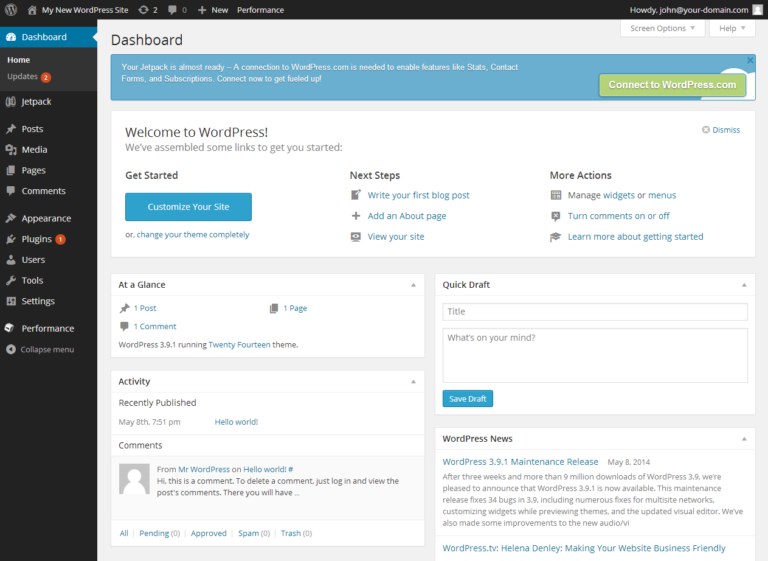
Sign in and Sign in to Your WordPress Account.
First, you will have to log in to the WordPress backend (Admin area). This is where to do it: your website. After installing WordPress you can access the administrator controls by entering http://example. Com/wp-admin and typing in your username and password.
Once you’re logged in, follow these steps: Once you’re logged in, follow these steps:
In the General Settings screen, you will find two fields, Site Title, and the tagline.
Site Title: New Title: Type the new title you expect for your site. This could either be the name of business or an individual’s name or one that shows the purpose of the site more clearly.
Tagline: Write a short sentence or phrase that will enrich your site title. The tag line should add value to your site and give more information about what your site is.
Now, click the site Title and Tagline and update them. Then scroll to the end of the page and click ‘Save Changes’. This will edit the site title and tagline.
To ensure your changes have been applied:To ensure your changes have been applied:
Changes Not Showing Up
If the changes are not reflected after saving the modification tools manually, then try to delete your browser cache or check the site from another browser. Sometimes it might even take sometime before the changes are effective.
Theme Overrides
A few WordPress themes might also automatically replace the site title and tagline display mode. Sometimes you may not see your changes in the same theme especially if the theme has inbuilt customization settings. You may need to update the site title and tagline on the site there also.
SEO Plugins
The most important issue is to make sure that the title and tagline parameters in the General Settings and SEO plugin, such as Yoast SEO, are identical. It is also important to note that certain plugins can overrule default configurations with SEO functionalities.